
Managing Open Sessions: Keep Your Accounts Secure
We've all been there: you come home after a long day at work, flop onto the couch, and while deciding what to watch on TV, you remember that you left several open sessions on your social media accounts and other platforms. Whether it's because you switched devices at work, forgot to log out at the gym, or simply left your laptop unattended at a café, knowing how to handle these situations is crucial for protecting your privacy and keeping your data safe.
Why is it important to log out of open sessions?
You can support the project by sharing this article or saving it for later.
Logging out of open sessions isn't just about digital hygiene; it's essential to prevent others from accessing your personal information. Imagine leaving your email account open on a shared computer; it could be a feast for any curious onlooker. Additionally, some platforms have limits on the number of devices you can access your account from. So cleaning up can free up space for your future digital adventures.
How to log out of open sessions on different platforms
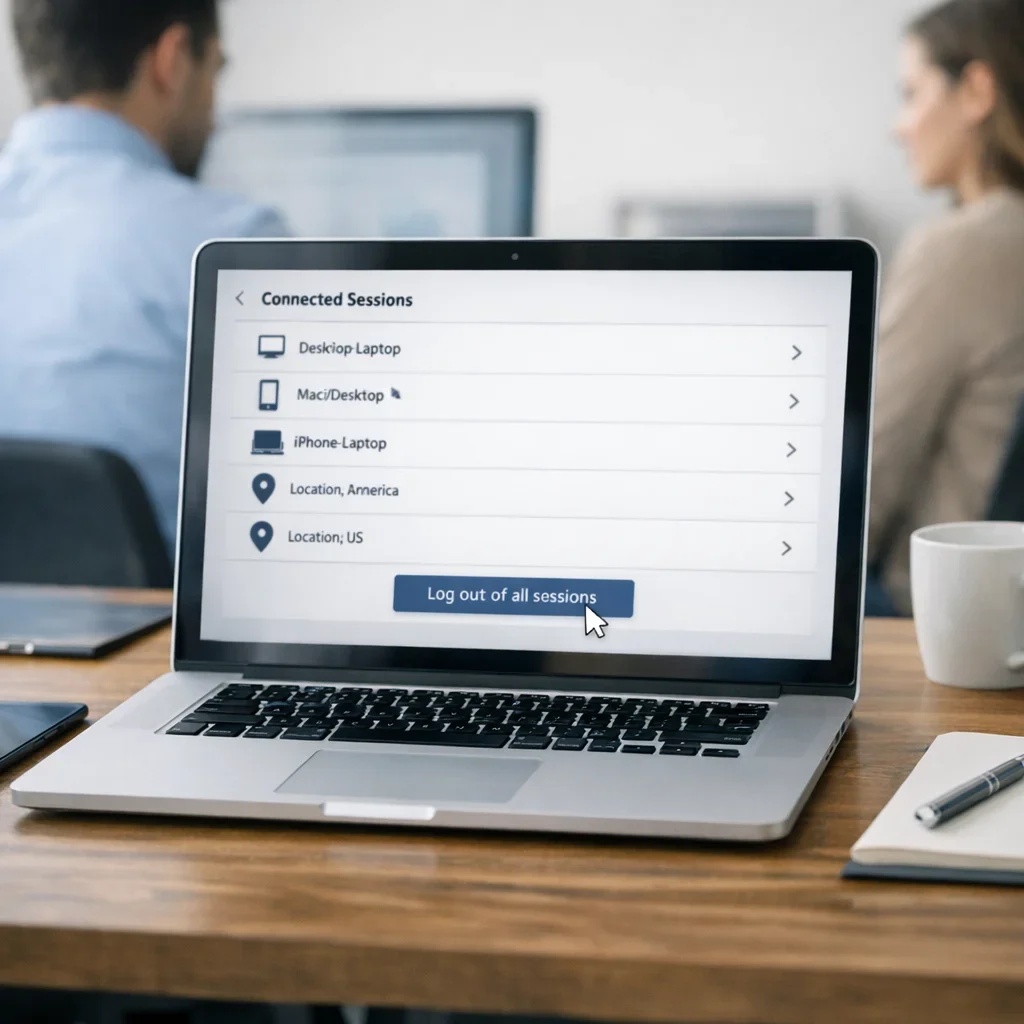
The instructions for logging out vary by platform. Here’s a handy summary to keep you on track:
Logging out of social media
- Facebook: Go to "Settings", then "Security and Login", and check "Where You're Logged In". From there, you can log out of unwanted devices.
- Instagram: In "Settings", go to "Security" and then "Login Activity". There you can manage active sessions.
Logging out of email accounts
- Gmail: At the bottom of the page, you’ll see the "Details" option to log out of active sessions.
- Outlook: Navigate to "Settings", then "View all Outlook settings", and find "Security". From there, you can log out.
Logging out of streaming platforms
- Netflix: Go to "Account", scroll down to "Sign out of all devices" to clean up.
- Spotify: In "Settings", look for "Sign out of other devices" to disconnect unwanted sessions.
Common mistakes when managing open sessions
- Not regularly checking open sessions.
- Forgetting to log out on public devices.
- Not changing passwords after suspicious incidents.
- Using the "remember password" option on shared devices.
Quick tips for managing open sessions
- Enable two-factor authentication whenever possible.
- Review and log out of sessions each time you switch devices.
- Change your passwords periodically.
- Use a password manager to keep everything organized.
- Log out of accounts you don’t use regularly.
| Element | What to check | Red flag | Action |
|---|---|---|---|
| Social Media | Access from unknown devices | Active sessions in suspicious locations | Log out and change password |
| Email Accounts | Unauthorized login attempts | Login notifications from strange locations | Enable two-factor authentication |
| Streaming Platforms | Connected devices | Unrecognized activity on your account | Log out of all devices |
| Cloud Services | Accessing files from other devices | Unauthorized access to documents | Review and log out of active sessions |
How to log out of open sessions en masse
If you tend to forget to log out everywhere, don’t worry. There are ways to clean up without having to go one by one on each platform. Here’s how to do it efficiently:
Log out from your account settings
Many platforms allow you to log out of all active sessions with just one click. Here are a couple of examples to keep you from feeling lost:
- Google: Go to your Google account, access "Security", and look for "Your Devices". From there, you can log out of all devices where you're connected.
- Facebook: In "Settings", go to "Security and Login" and select "Log out of all devices". It's that easy!
Third-party apps for managing sessions
If you're a bit more tech-savvy, you can use apps that help you manage your open sessions across multiple platforms. Here are some options that can make your life easier:
- LastPass: Besides being a password manager, it allows you to view and log out of active sessions on different services.
- 1Password: Similar to LastPass, it helps you manage your credentials and open sessions from one place.
What to do if you suspect someone accessed your account?
Paranoia isn't unwarranted when it comes to your digital security. If you suspect someone has accessed your account, here’s a list of steps to follow:
- Log out of all devices: Do it immediately. Most platforms have this option in the settings.
- Change your password: Make sure it's strong and unique. Avoid using the same password across different accounts.
- Enable two-factor authentication: This adds an extra layer of security that can be very helpful.
- Review your account activity: Many platforms allow you to see recent logins. If you notice anything suspicious, act quickly.
Practical example: How to do it in Gmail
If you think someone has accessed your Gmail account, here’s a step-by-step guide:
- Log in to your Gmail account.
- Scroll to the bottom of the page and click on "Details".
- In the window that opens, you’ll see the option to log out of other locations.
- Click on "Sign out of all other sessions".
- Finally, change your password and enable two-factor authentication.
And voilà, your account will be safer than ever! Don’t underestimate the importance of these actions, as they can save you from a major scare.
Final thoughts on logging out of open sessions
In today's digital world, logging out of open sessions is more than just a matter of convenience; it's a necessity. Don’t let laziness play a trick on you. Make logging out a routine at the end of each use. Otherwise, you might find yourself in an awkward situation, like your ex posting embarrassing photos on your Facebook account.
So, dear reader, take control of your digital security. Remember that a small effort at the end of each session can save you a lot of headaches in the future. Log out of those sessions and live worry-free!
The importance of regular digital cleaning
If you think logging out of open sessions is just a task you do occasionally, think again. Regular digital cleaning is as necessary as taking out the trash from your home. Ignoring it can lead to total chaos. Here are some points to consider:
- Cloud Space: Accounts with open sessions can accumulate unnecessary information. Cleaning can free up space and improve performance.
- Security: Each open session is a potential door for hackers. More sessions mean more risks.
- Organization: Keeping your accounts tidy helps you be more productive. Knowing you have control over your sessions will keep your mind at ease.
How to implement a digital cleaning routine
I propose a simple digital cleaning routine that you can do once a month. It won’t take you more than 15 minutes, and trust me, your future self will thank you:
- Review your accounts: Take a moment to review all your accounts. Make a list of the ones you use and the ones you’ve forgotten.
- Log out of unnecessary sessions: For accounts you don’t use, log out of open sessions and consider deleting accounts you don’t need.
- Change passwords: Change the passwords for your most important accounts. It’s not necessary to do it for all, but definitely for those containing sensitive information.
- Enable two-factor authentication: If you haven’t done it yet, now’s the time. Add an extra layer of security to your most critical accounts.
- Do a quick activity review: Take a look at your accounts' recent activity. If you see anything suspicious, act immediately.
Consequences of not logging out of open sessions
Laziness can cost you dearly. Here are some consequences you might face if you choose to ignore logging out of open sessions:
- Unauthorized access: Anyone with access to your device can enter your accounts. From a curious coworker to a friend who doesn’t know when to stop exploring.
- Identity theft: If someone manages to access your personal information, the consequences can be devastating. From identity fraud to financial scams.
- Disorganization: Having multiple open sessions on various devices can lead to confusion. Who hasn’t forgotten whether they uploaded that photo to Instagram or not?
So, in summary, it’s not just about logging out; it’s about establishing a habit that keeps you safe and organized in the digital world. The next time you feel tempted to leave a session open, remember: one click can save you a lot of trouble. Do it for your digital future!
Updated on 11/10/2025. Content verified with experience, authority, and trustworthiness (E-E-A-T) criteria.
Frequently Asked Questions about Logging Out of Open Sessions
Is it safe to leave my sessions open on personal devices?
Generally, yes, as long as you're sure no one else has access to your device. If you share your computer or mobile, it’s better to log out to avoid unpleasant surprises.
How do I know if someone has accessed my accounts without permission?
Check the recent activity on your accounts. Many platforms notify you about logins from unknown devices or locations. If you see something unusual, log out and change your password immediately.
Should I log out of all my accounts after using them?
It’s not necessary, but it’s a good practice, especially on public or shared devices. On personal devices, you can choose to keep sessions open if you’re sure no one else will use them.
Can I quickly log out of all my open sessions?
Some platforms offer the option to "Log out of all devices", which can be very useful if you suspect your account has been compromised or simply want to clean up.
What should I do if I forget to log out on a public device?
Check your account settings to see if you can log out remotely. Additionally, change your password for added security and consider enabling two-factor authentication to protect yourself in the future.