
Windows: Basic Settings to Avoid Malware
If you use Windows, you know that keeping it safe from malware isn't just a matter of luck. This is where the famous windows microsoft patching comes into play, a process that many ignore until disaster strikes. Updating isn't just about hitting the button and being done; it's an art with its own tricks and traps. If you're interested in preventing a virus or ransomware from ruining your day, these tips will be helpful.
Automatic Updates: Friends or Foes?

Windows wants you to have automatic updates enabled, and generally, that's the smartest choice. Without Microsoft’s security patches, your system is a sieve for attacks that exploit known vulnerabilities. But be careful, automatic updates aren't foolproof and don't always work as they should.
In my experience, blindly trusting Windows Update to handle everything can be a mistake. Sometimes updates don't download or get stuck. Or worse: a poorly tested update can cause something to stop working. That's why it's wise to manually check at least once a week for any pending patches.
If you found this useful, don't forget to check your update settings from time to time to ensure everything is in order.
Moreover, not all updates are created equal. Security updates are essential, but there are also system improvements and performance patches that can wait a bit. Learn to distinguish them and prioritize security updates. This will save you problems and time.
What to Do When Updates Fail?
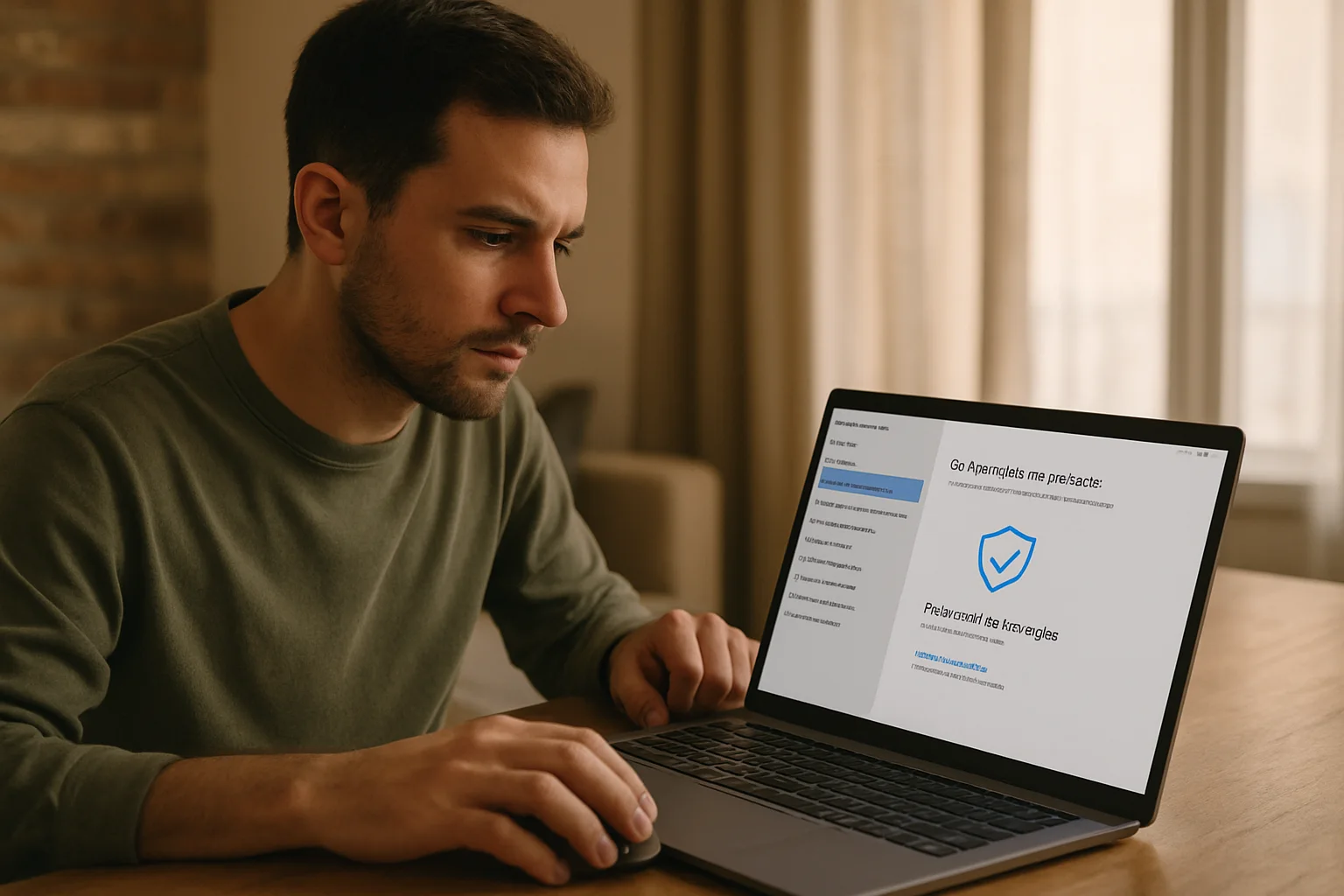
If you've ever encountered the dreaded error while installing a patch, you're not alone. Windows Microsoft patching can be a headache when updates don't apply correctly. Here's a detail that few people mention: sometimes the problem isn't with Windows but with the antivirus or certain programs that block the process.
Temporarily disabling the antivirus or firewall can be the solution, although I don't like to recommend it lightly. It's best to identify the conflict and, if you can't, at least know that this is the cause. Another option is to use the Windows Update Troubleshooter, which usually resolves common errors without requiring much more from you.
In more stubborn cases, resorting to the command line to clear the Windows Update cache or manually downloading the patch from the official page can get you out of a bind. It's not for everyone, but if you put in a little effort, it works.
Additional Settings to Strengthen Security
Updating is just one part of the equation. There are other settings in Windows that reduce the chances of malware getting in or causing harm. For example, enable User Account Control (UAC) at a high level, limit application permissions, and keep the Windows firewall turned on.
I also recommend reviewing the applications that run at startup and removing any that you don't recognize. Many malicious programs sneak in this way and run without your knowledge. On my machine, I usually do this cleanup every two weeks to avoid accumulating problems.
Did you know that Windows Defender, if configured properly, is more than sufficient as an antivirus for the average user? There's no need to complicate things with dozens of programs that sometimes slow down the system and don't offer much more. Just keep Defender updated and don't disable it without a good reason.
What About VPNs? Do They Help Protect Updates?
A VPN isn't directly a security patch for Windows, but it's an interesting complement when using public or unreliable networks. If you're applying updates in a café or airport, a VPN can prevent someone from intercepting and manipulating your connection. It's not common, but it can happen.
At home, with your secure connection, the VPN makes less sense for updates, although it remains useful for protecting your privacy. Here's a nuance: the VPN doesn't replace patches, far from it. If your Windows is outdated, the VPN won't save you from an exploit that the attacker already knows about.
When Is It Better to Wait to Update?
This is a topic that doesn't usually come up in basic advice: it's not always wise to install the latest update as soon as it comes out. Microsoft typically releases patches every second Tuesday of the month (the famous Patch Tuesday), but there can also be urgent updates outside of that schedule.
In my opinion, waiting a day or two for the community to detect possible issues with a new patch is prudent. Errors in updates aren't uncommon and can leave your system unusable until a fix is released. If you use Windows for critical work, this wait can save you a headache.
Of course, this depends on the type of patch. If it's a serious vulnerability being actively exploited, you shouldn't wait a minute. But if it's a minor improvement, letting others be the guinea pigs isn't a bad idea.
What Should I Do If I've Already Caught Malware?
If malware has already gotten in, updating won't solve the problem. Here, prevention is better than cure. But if you find yourself in that situation, the first step is to disconnect the device from the internet to prevent it from spreading or stealing data.
Next, using a reliable scanning and cleaning tool is essential. Windows Defender can do a good job, but in severe cases, you may need more powerful software or even restore the system to a previous point.
And be careful, don't trust just any program you find: some promise to remove malware but end up being a problem themselves. Experience counts for a lot here.
The Invisible Trap of Deferred Updates: A Little-Discussed Risk
Many users choose to postpone or defer Windows Microsoft patching updates to avoid interruptions or unexpected problems. However, this practice, while understandable, can become a silent trap. When too many pending patches accumulate, especially security ones, the attack surface increases exponentially. A clear example occurred in 2017 with the WannaCry ransomware, which exploited a vulnerability for which Microsoft had already released a patch months earlier. Systems that delayed the update were left exposed and suffered severe consequences.
This case illustrates that deferring isn't just a matter of convenience; it can be a critical decision in terms of security. Additionally, when numerous updates pile up, the installation process can become slower and more prone to failures, leading to the frustration that causes further postponement. It's a vicious cycle that can end with the system compromised or unusable.
Why Do Some Updates Resist Installation? A Look at Internal Conflicts
A nuance that is rarely mentioned is the role that internal settings and third-party software play in the patching process. For example, certain outdated or incompatible hardware drivers can prevent a patch from being applied correctly. It's not just the antivirus or firewall blocking the installation, but a greater complexity: the software and hardware ecosystem interacting with Windows.
A specific case was the failure experienced by users with old graphics cards after a critical security update; the patch not only failed to install but also caused blue screens. The solution involved first updating the device drivers, something many users don't consider until the problem manifests. That's why keeping drivers up to date is an essential complement to patching.
The False Sense of Security Created by “Everything Automatic”
Enabling automatic updates can create a false sense of security, especially if the details of each patch aren't reviewed. Windows Microsoft patching isn't always a transparent process for the user, and many ignore that some updates require additional actions, such as restarts at specific times or post-installation configuration checks.
For example, in corporate environments, an update may disable certain security policies or change network settings without the user noticing, leaving unintended backdoors open. In home settings, an automatic restart at an inconvenient time can interrupt critical tasks, leading to the disabling of automatic updates and, consequently, greater exposure. Understanding this dynamic and maintaining at least minimal active control is key to avoiding this false comfort.
Practical Consequences of Not Understanding the Hierarchy of Updates
A common mistake is treating all updates as if they have the same priority and urgency. However, Microsoft classifies its patches into several types: critical, security, cumulative, optional, and quality. Not recognizing this hierarchy can lead to poor decisions, such as installing an optional update that improves the graphical interface first instead of a critical patch that closes an actively exploited security gap.
An example of this confusion occurred when a user installed an optional update to improve compatibility with certain devices but left pending a critical patch that corrected a vulnerability in the SMB protocol, which ended up being exploited by malware. The consequence was an infection that could have been avoided by correctly prioritizing updates.
Therefore, it's not only important to update but also to know what to update first and when to do it. This understanding can make the difference between a secure system and a vulnerable one.
Published: 11/05/2026. Content reviewed using experience, authority and trustworthiness criteria (E-E-A-T).
This article may have used artificial intelligence tools to support structure, editing, translation or review. Editorial responsibility and final review remain with Toni Berraquero. View AI policy

You can support the project or share this article in one click. At least this block does something useful.