
Effortlessly Update Your Router's Firmware for a Better Connection
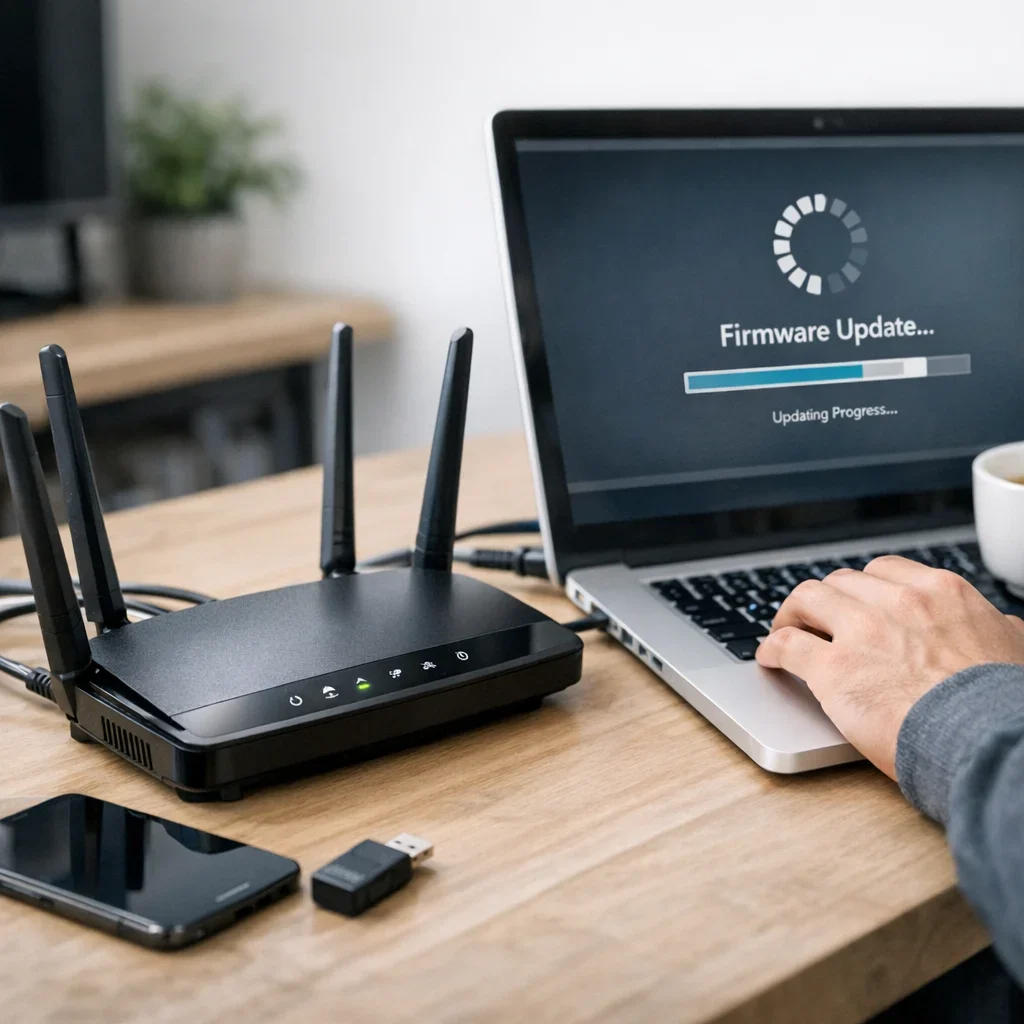
In Spain, where Internet connectivity is almost as essential as morning coffee, updating router firmware is often postponed until it’s too late. However, keeping your router's firmware updated is crucial: it not only enhances the speed and stability of your connection but also strengthens security against attacks and vulnerabilities. Here’s a step-by-step guide to do it smoothly, ensuring your home WiFi remains reliable.
What is firmware and why should you update it?
Firmware is the internal software that controls your router's hardware. Think of it as the brain that manages your Internet connection, WiFi networks, ports, and many other functions.
Support the project or tell me what topic to cover next.
Updating the firmware is like giving the brain a strong coffee: it fixes bugs, adds new features, and patches security holes that could leave you vulnerable to hackers or technical issues.
In Spain, where most of us use routers provided by ISPs or purchased from stores, keeping the firmware updated can make the difference between a stable connection and a constant headache.
Before You Start: Essential Preparations
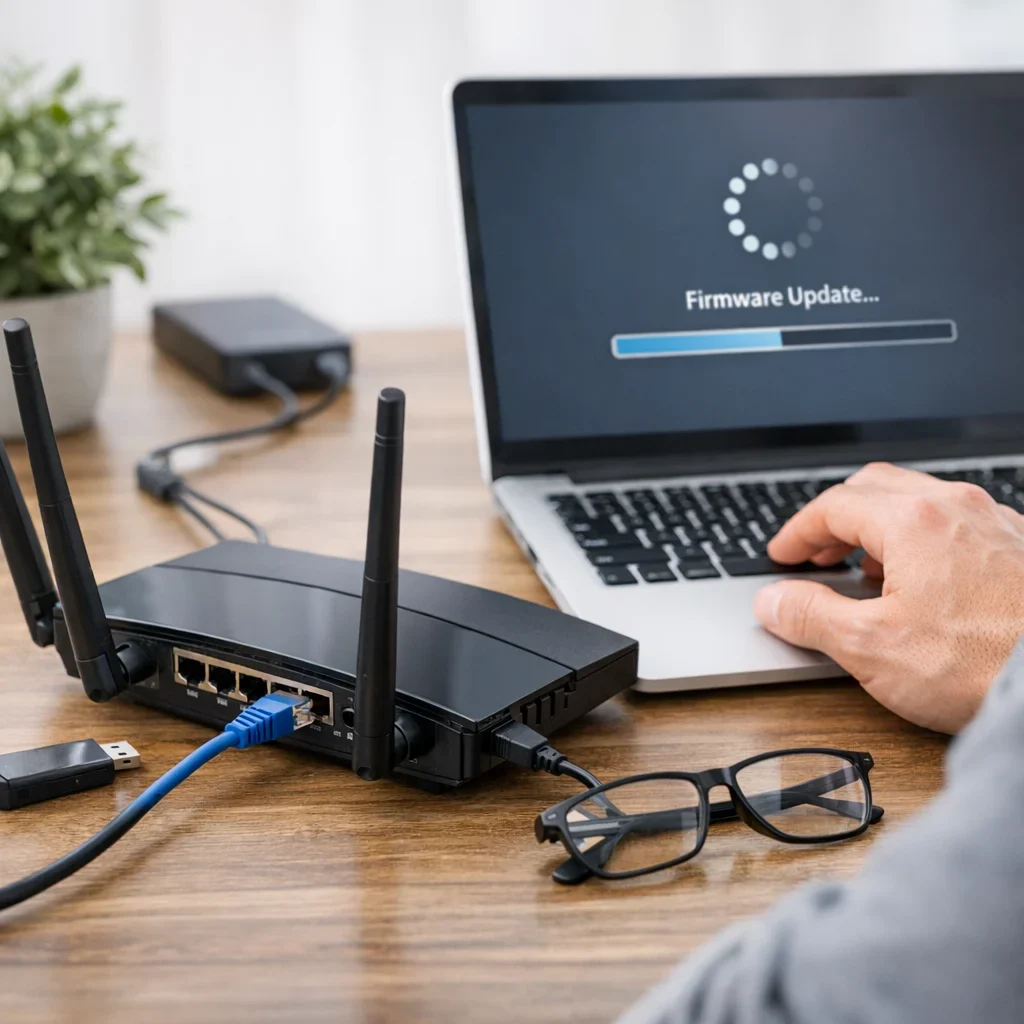
Don’t jump into updating without laying the groundwork. These preliminary steps will help you avoid ending up with a useless router or a downed network when you need it most:
- Identify the exact model of your router. Each brand and model has its own firmware, and not just any file will do.
- Access the official website of the manufacturer or your ISP. Here you’ll find the official and safe version of the firmware. Don’t trust dubious forums or websites.
- Make a backup of your current settings. This way, you can restore your settings if something goes wrong.
- Connect via Ethernet cable. Updating over WiFi is like playing Russian roulette: one disconnection and goodbye router.
- Ensure stable power supply. It’s best not to do this during a storm or when power cuts might occur.
How to Update Firmware Step by Step
You don’t need to be an engineer to update your router's firmware, but you do need to be clear on each step:
- Access the router’s settings. Usually by typing the IP 192.168.1.1 or 192.168.0.1 into your browser. If you’re unsure, check the router’s label or documentation.
- Enter the username and password. In many cases, it’s admin/admin or admin/1234, but if those don’t work, check the label or ask your ISP.
- Look for the firmware update section. This is typically found under “Administration,” “System,” or “Tools.”
- Verify the current version. Check if your version is older than the one available on the official website.
- Download the corresponding firmware file. Save the file in an accessible location.
- Select “Update” or “Choose file” and upload the downloaded firmware.
- Confirm the update and wait patiently. Do not turn off or disconnect the router during the process.
- Restart the router if it doesn’t do so automatically.
- Restore settings if necessary. If you notice issues after updating, load the backup or configure from scratch.
Common Mistakes When Updating Router Firmware
- Updating with an incorrect file for your model. This can leave the router “fried” and in need of technical rescue.
- Interrupting the process due to power cuts or disconnections. Turning off the router during the update is the surest way to render it unusable.
- Not making a backup. If something goes wrong, you’ll lose all your personalized settings and have to start over.
- Trying to update via WiFi. Connection instability can cause errors.
- Ignoring the manufacturer’s specific instructions. Each router has its peculiarities, and skipping them is a classic mistake.
Quick Tips to Avoid Mistakes
- Always consult the official website of your router or provider. Don’t trust unverified sources.
- Perform the update during low-traffic hours when you don’t urgently need the Internet. For example, at night or on weekends.
- If in doubt, ask your ISP’s technical support before making a mistake.
- Check if your router has automatic updates and how they work. Some modern models update themselves without you having to lift a finger.
- Note your current settings or take pictures of key screens. This helps avoid forgetfulness.
- Don’t hesitate to restore factory settings if things go wrong. You’ll just need to set it up again.
Comparison: Updating Firmware Yourself vs. Using Technical Support
| Aspect | Self-Update | Technical Support Update |
|---|---|---|
| Cost | Free or minimal (time) | May include fee or travel cost |
| Speed | Immediate, if you know how | Depends on schedule and availability |
| Error Risk | Medium-high if steps are not followed | Low, if it’s a professional service |
| Control | Total, you choose when and how | Limited, you depend on others |
| Learning | High, you gain experience | None, you just pay for the service |
How Often Should You Update Firmware?
There’s no one-size-fits-all answer. Some manufacturers release updates quarterly, while others do so much less frequently. Generally, it’s advisable to check every 3-6 months, or whenever you notice issues, to not miss out on improvements and security patches.
What if My Router is Provided by My ISP?
Major ISPs in Spain often manage firmware updates for their routers automatically or through their technicians. However, it’s always a good idea to check and confirm that you have the latest version, especially if you’re using your own router or a third-party one.
As we’ve discussed in other guides on Berraquero.com regarding digital security, keeping your equipment updated is an essential part of good digital hygiene.
Updated on 11/10/2025. Content verified with experience, authority, and trustworthiness criteria (E-E-A-T).
Frequently Asked Questions
Can I update the router firmware from my mobile?
In theory yes, if you access the router's web interface from your mobile browser and have the firmware file handy. However, it’s not ideal: the small screen and potential WiFi disconnections increase the risk of error. It’s better to use a computer connected via cable.
What happens if the update fails and the router stops working?
If the update is interrupted or you use an incorrect firmware, the router may become “bricked” (dead). Some models have recovery modes, but this usually requires technical knowledge or professional assistance. That’s why it’s crucial to follow the steps carefully and without rushing.
Will I lose my current settings when updating the firmware?
Not always. Many updates preserve the settings, but it’s not guaranteed. That’s why it’s essential to make a backup beforehand to avoid having to set everything up from scratch in case of issues.
Is it safe to download firmware from unofficial sites?
No, never. Downloading firmware from unofficial sources can jeopardize your security, as it may include malware or modified versions. Always use the official websites of the manufacturer or your ISP.
How can I tell if my router supports automatic updates?
Check the manual or the router’s interface. Some modern models offer the option to automatically update the firmware in the background without you having to do anything. If you don’t have this feature, you’ll need to update manually from time to time.
Updating your router's firmware doesn’t have to be a nightmare or a mystery. With a bit of attention, preparation, and common sense, you can keep your network secure and stable without needing to call a technician every time there’s an improvement. And remember, as we’ve discussed in other posts on Berraquero.com about digital habits, taking care of your equipment is taking care of your online peace of mind.
If you want to delve deeper into security and privacy in home networks, don’t miss our guides on VPNs and cybersecurity for home users.
For more official information on best practices for networks and connected devices, you can visit the National Cybersecurity Institute (INCIBE), which offers resources tailored to the Spanish context.