
Mastering Your Wi-Fi Password: Secure Your Connection Effectively
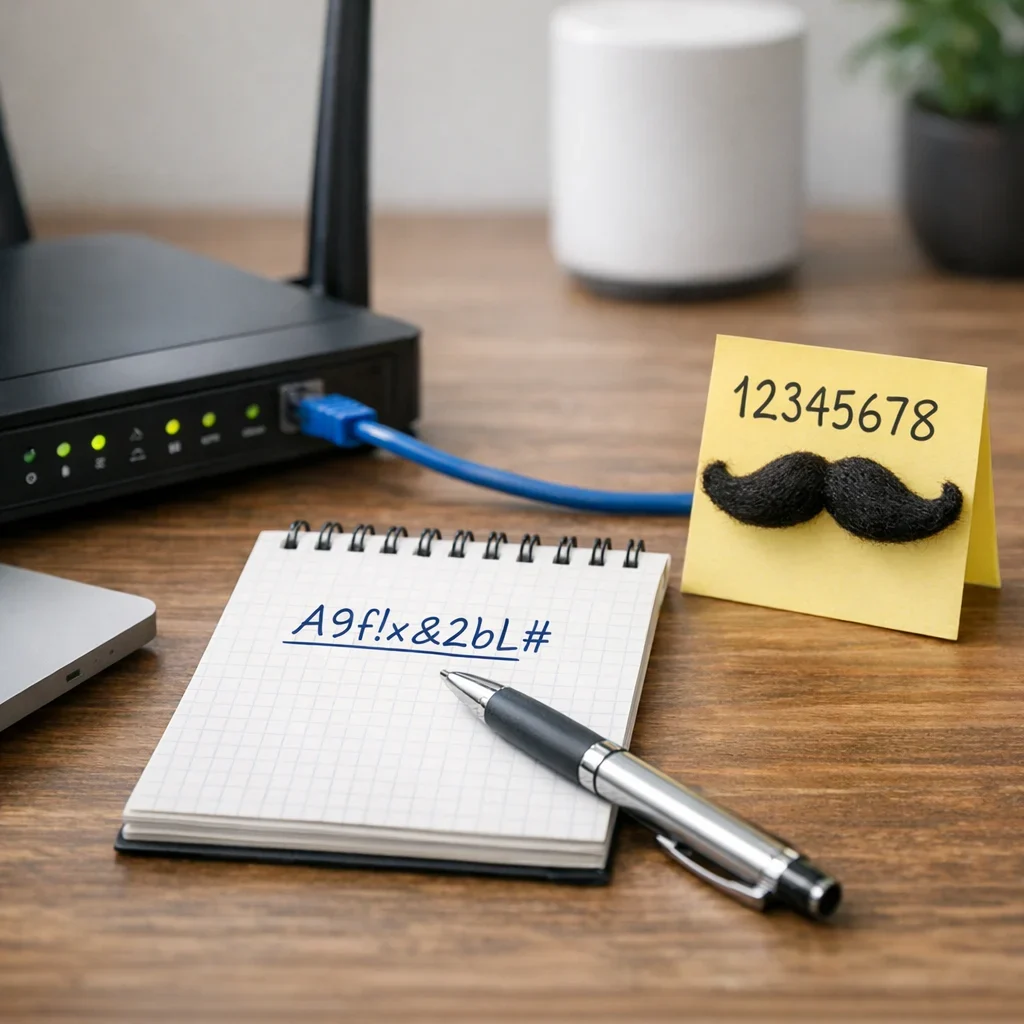
In Spain, where internet connectivity is as essential as coffee to start the day, changing your Wi-Fi password should not be an overlooked task or a mystery reserved for technicians. Beyond preventing your neighbor from stealing your bandwidth or your personal data from wandering the web, updating and choosing a strong password is fundamental to keeping your network secure and your patience intact. Let’s explore how to do this without falling into common mistakes, with practical tips and no confusing jargon.
Why is it crucial to change your Wi-Fi password?
Many believe that their router's password is eternal or that "no one will be interested in my connection." However, if you don’t change it, anyone with a bit of interest and knowledge can access your network. This not only means potential extra data consumption but also serious security risks: from spying on your browsing to using your Wi-Fi for illegal activities.
Support the project or tell me what topic to cover next.
In Spain, with increasing digitalization and the importance of digital privacy, maintaining an updated and robust password is as basic as changing your sheets from time to time. Additionally, internet providers often deliver routers with default passwords that are easy to guess or find online.
How to change your Wi-Fi password step by step
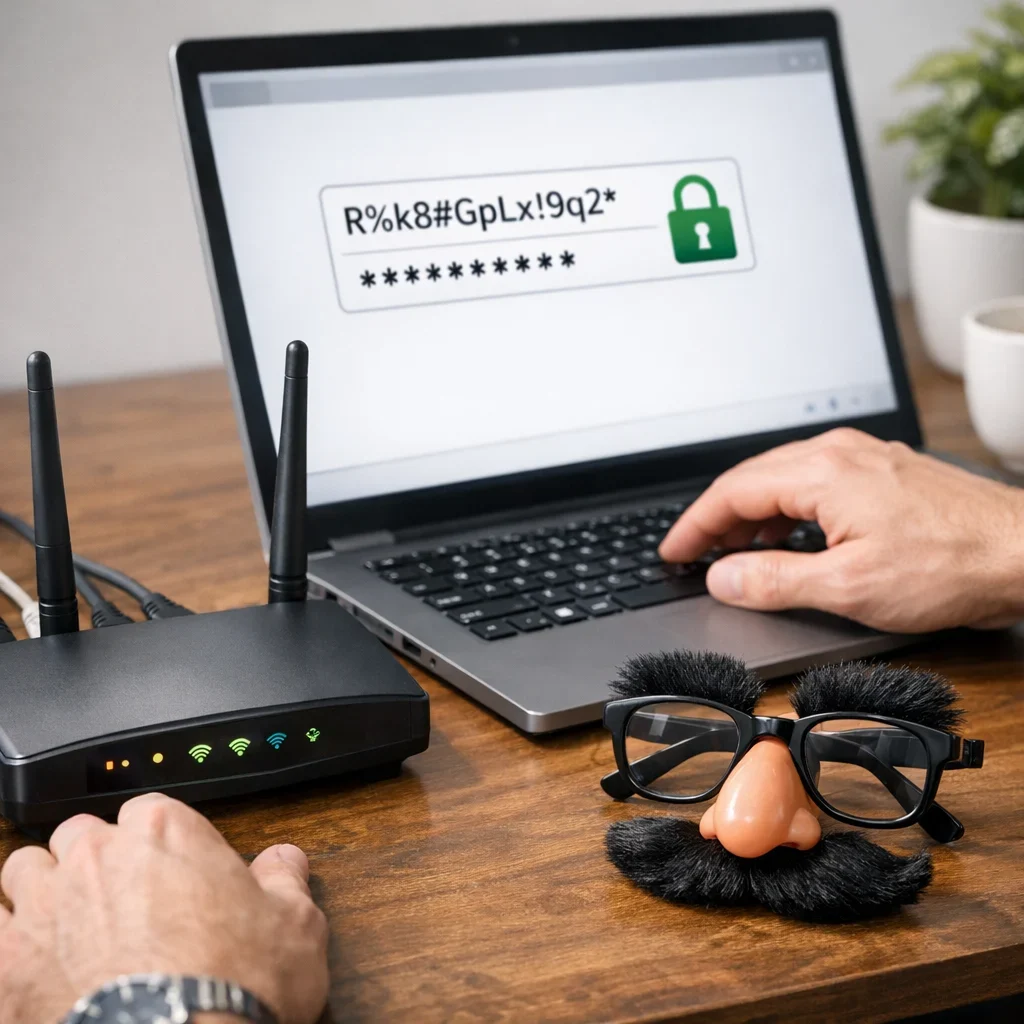
Before you start overthinking, here’s a simple guide to do it yourself, without calling anyone or wasting hours:
- Access the router: Usually by typing the router's IP address in your browser (something like 192.168.1.1 or 192.168.0.1). If you don’t know it, check the router's label or search for it online based on your model and provider.
- Enter username and password: By default, these are often “admin”/“admin” or “user”/“password,” but if not, check the manual or the label. If someone has already changed it and you don’t know, you’ll need to reset the router.
- Find the Wi-Fi settings section: It’s usually called “Wireless,” “Wi-Fi,” or “Wireless Network.” There you’ll find the option to change the password or “security key.”
- Select the security type: Nowadays, it’s recommended to use WPA2 or WPA3, not WEP, which is insecure.
- Change the password: Enter your new key, which should not be obvious or short. Save the changes and restart the router if necessary.
- Connect your devices: Now you’ll need to enter the new password on all devices using your Wi-Fi.
Common mistakes when changing the Wi-Fi password
- Using easy or common passwords: “12345678,” “password,” “qwerty,” or your dog’s name are risky. Any attacker or curious neighbor can guess them in seconds.
- Not changing the default password: Routers come with generic keys that can be easily found online.
- Not updating the security type: WEP or even open networks still exist, but they are insecure and a magnet for intruders.
- Forgetting to change the password after resetting the router: If you reset, you revert to the initial settings, and if you don’t change the key, you’re exposed again.
- Sharing the password with too many people: The more people who know it, the higher the risk of it circulating beyond your control.
- Not backing up or noting the new key: Changing it without keeping it safe can lead to a “I can’t connect either” situation.
Quick tips for a secure and practical Wi-Fi password
- Use combinations of uppercase and lowercase letters, numbers, and symbols.
- Make it at least 12 characters long to enhance security.
- Avoid dictionary words, dates, or obvious personal information.
- Change the password every 6-12 months.
- Use password managers to keep track of them.
- Disable SSID broadcasting if you don’t need your network to be visible.
- Change the Wi-Fi network name (SSID) as well. This way, you don’t “give away” hints about your provider or router model.
How often should I change my Wi-Fi password?
In an ideal world, every 6 months would be the right thing to do to avoid unnecessary risks. But if you’re someone who only changes the key when there are issues or suspicions, do it at least once a year. The important thing is not to leave it unchanged forever and to control who has it.
What to do if I forget the new password?
If you’ve gotten confused and can’t remember the key, the only secure solution is to access the router and change it again. In extreme cases, perform a complete reset of the router to revert to the initial settings (and default password). Just remember that this will disconnect all devices, and you’ll need to set everything up again.
Updated on 11/10/2025. Content verified with experience, authority, and trustworthiness criteria (E-E-A-T).
FAQ about changing your Wi-Fi password
Can I change the Wi-Fi password from my mobile?
Yes, as long as the mobile is connected to the network and you have access to the router's admin panel via a browser. Many modern routers have management apps, but the universal method is to enter through the browser using the router's IP and log in.
What happens if I don’t change the Wi-Fi password and someone connects without permission?
Besides stealing your bandwidth and slowing down your internet, they can access devices on your network, spy on your traffic, and use your connection for illegal activities, which can lead to serious problems. Therefore, protecting the network is essential, especially in homes and offices.
Should I also change the Wi-Fi network name (SSID)?
It’s not mandatory, but it is recommended. The default SSID often indicates the provider or router model, making it easier for attackers to try to breach the associated keys. Changing it to a neutral or personalized name improves security and privacy.
What if my router doesn’t have the option for WPA2 or WPA3?
If your router only offers outdated protocols, it’s time to consider upgrading your equipment. Providers in Spain often offer free or rental routers with modern technologies. You can also buy a compatible one and set it up yourself for better security and performance.
Is it safe to use a very long and complicated Wi-Fi password?
Yes, the longer and more complex, the better. Nowadays, routers and devices can handle long passwords without issues. Just make sure to keep it safe or use a password manager to avoid losing it. Security should not be an obstacle but a barrier against intruders.
If you want to delve deeper into digital security, at Berraquero.com we have other useful guides on digital habits and online privacy that will help you keep your digital life safe and drama-free.
Finally, to better understand the importance of protecting your network, you can consult official information and recommendations on the website of the National Cybersecurity Institute of Spain (INCIBE), which is the authority on the matter and always has updated advice.